 |
|


 Open Support Ticket
| Installing DLGuard |
|
|||||||||||||||||||||||||||||||||||||||||||||||||||||||||
|
|||||||||||||||||||||||||||||||||||||||||||||||||||||||||
|
The quickest and easiest way to install DLGuard is by a Windows executable file. This file will upload and help configure DLGuard onto your website. If you are unable to run Windows exe files then you have the alternative of uploading and configuring your software as usual.
After downloading your installation file, unzip the contents of the zip file onto your computer. It will contain a file named "dlg4setup.exe". This file is designed to be run on your computer, NOT on your website. Running this file on your computer will setup DLGuard on your website for you. So to run this file, double click your mouse on the file.
The installation steps are as follows:
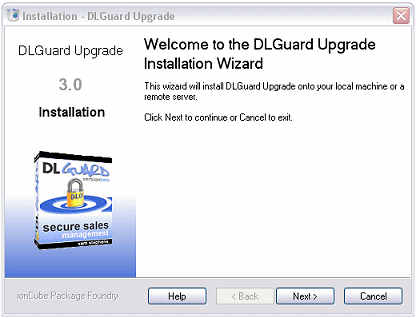
Step 1: Click "Next" on the intro screen to continue.
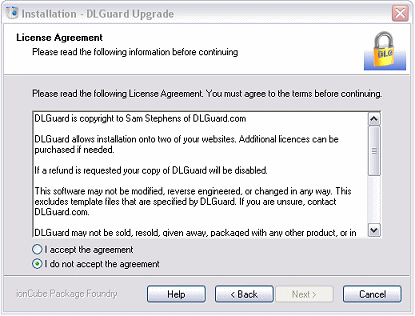
Step 2: To install and use DLGuard you must accept the licence agreement. Click in the "I accept the agreement" circle. If you do not accept the agreement then you cannot use DLGuard.
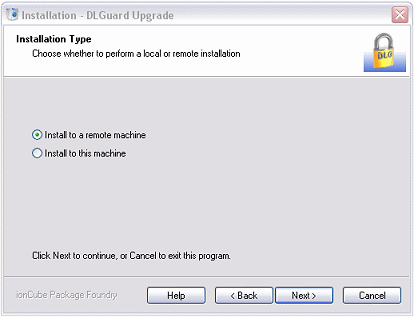
Step 3: Make sure you select "Install to a remote machine", as this will install DLGuard onto your website. Click "Next" to continue.
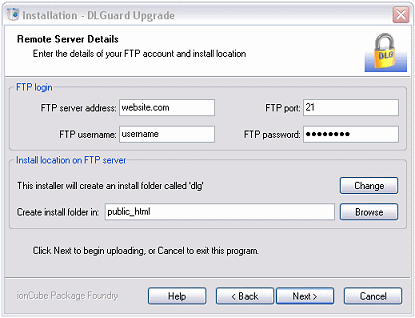
Step 4: You will be asked for your website's FTP details. If you are not sure what your FTP details are, contact your hosting provider and they will be able to tell you. In the "Installation Location" section you will be asked what you would like to name the folder into which you will install DLGuard. By default, the folder name is "dlg", though you may change this if you wish by clicking on the button marked "Change". The next box is labelled "Create install folder in:". You should enter the location on your web server where you want to create the DLGuard folder. This location MUST be created in a publicly accessible area of your website. Usually this will be the same folder where you upload all your webpage files. This is often called "public_html", or "www", or "http", or "httpsite", or something similar, or you may not need one at all. It doesn't matter what it is called, or whether or not you need this folder, it just matters that you install DLGuard into the folder where you upload all your other webpage files. You can click the "Browse" button to view your site and select the folder into which you want to put your DLGuard folder. NOTE: If your website has multiple domain names attached to the one hosting account, then often your extra sites will have their own folder on your hosting space. Make sure you put DLGuard into the correct domain folder, if this is the case.
Click the "Next" button.
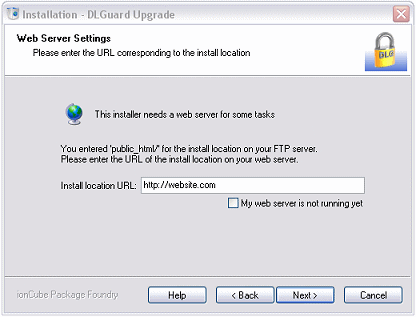
Step 5: After doing some checks the DLGuard Installation will ask you what the install location URL is. This means, what is the website address to where DLGuard will be installed. So for example, if you connect to your server "website.com", and you put DLGuard into your "public_html" folder, your "Installation Location URL" will be "http://website.com". Basically it means that if you were to find your website in your browser, what URL would you use to find it with. In most cases this will simply be your domain name (including the http://). Click "Next".
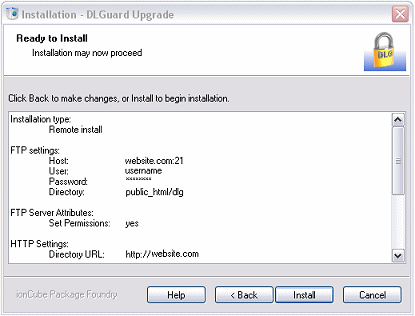
Step 6: You will be asked to confirm the details you've already entered. If it all looks okay, click "Install".
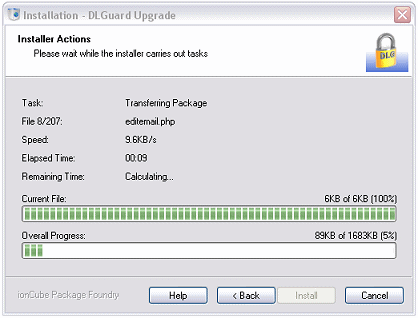
Step 7: Sit back and watch DLGuard being installed on your site.
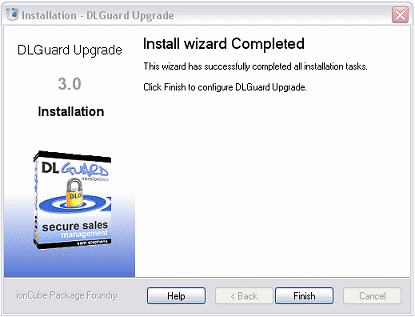
Step 8: After everything has been uploaded, and the appropriate file permissions set you will see the screen above. Click "Finish".
Step 9: After clicking "Finish" you will be taken to a DLGuard screen that will ask you to select a username and password as well as enter your email address. Type in what you wish your login details to be and then click "Next". Problems at this step? Check out the answers to common installation questions.
Step 10: You will be asked to log in to your website via FTP (or however you normally connect to your website). You will need to change the file permissions of your "admin" folder from 777 back to 755 (If you're not sure how to change file permissions, read below).
You will also need to delete your "install" folder from your website. Once this is complete you can Login to DLGuard by clicking the Login link.
Logging In To DLGuard: To login to DLGuard, all you need to do is point your web browser to your "admin" folder in DLGuard. So for example: www.example.com/dlg/admin/ (...where "example.com" is your domain name, and "dlg" is the folder into which you installed DLGuard)
All done! * Note: When first logging in to DLGuard you will be asked to enter your receipt number. You will only be asked this once. If you experienced any problems installing DLGuard, please view the Common Installation Questions here.
Thank you for your on-going support, Sam
Stephens
|
|

 Automatic
Installation via the Installer Software:
Automatic
Installation via the Installer Software: